
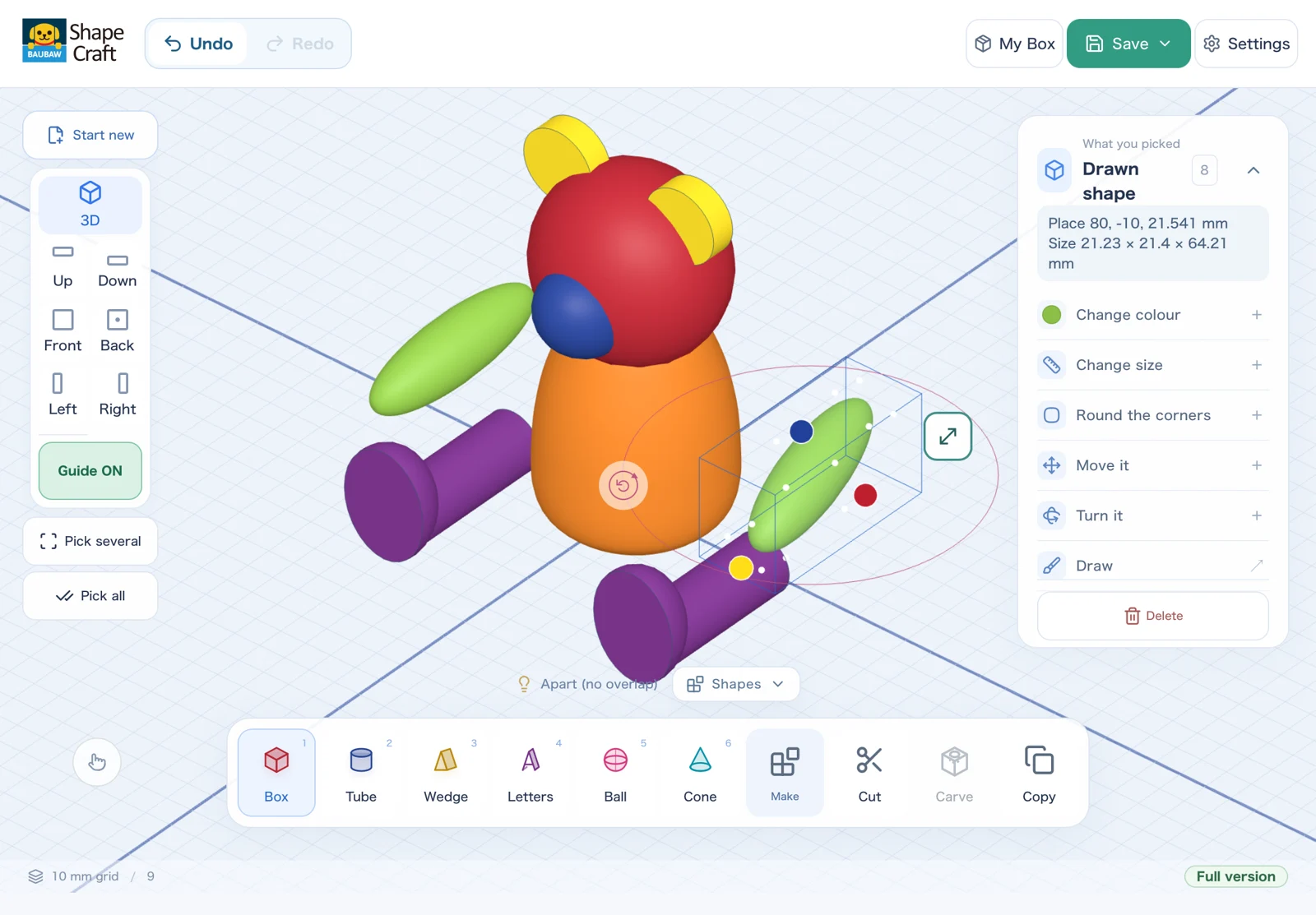
01Build in 3D.
Place, stretch and combine basic solids to design your own ideas.
PLAY. CREATE. DISCOVER.
From shapes and solids to something no one has seen before.
Real 3D making on iPad.
The maths you learn becomes the power to create.

BAUBAW Shape Craft
For iPad · English / 日本語 · Free with in-app purchase
BAUBAW SHAPE CRAFT / MADE ON iPad
HELLO, YOUNG MAKER!
Shape your ideas in 3D, then hold the finished piece in your hands.
Place, stretch and combine basic solids to design your own ideas.
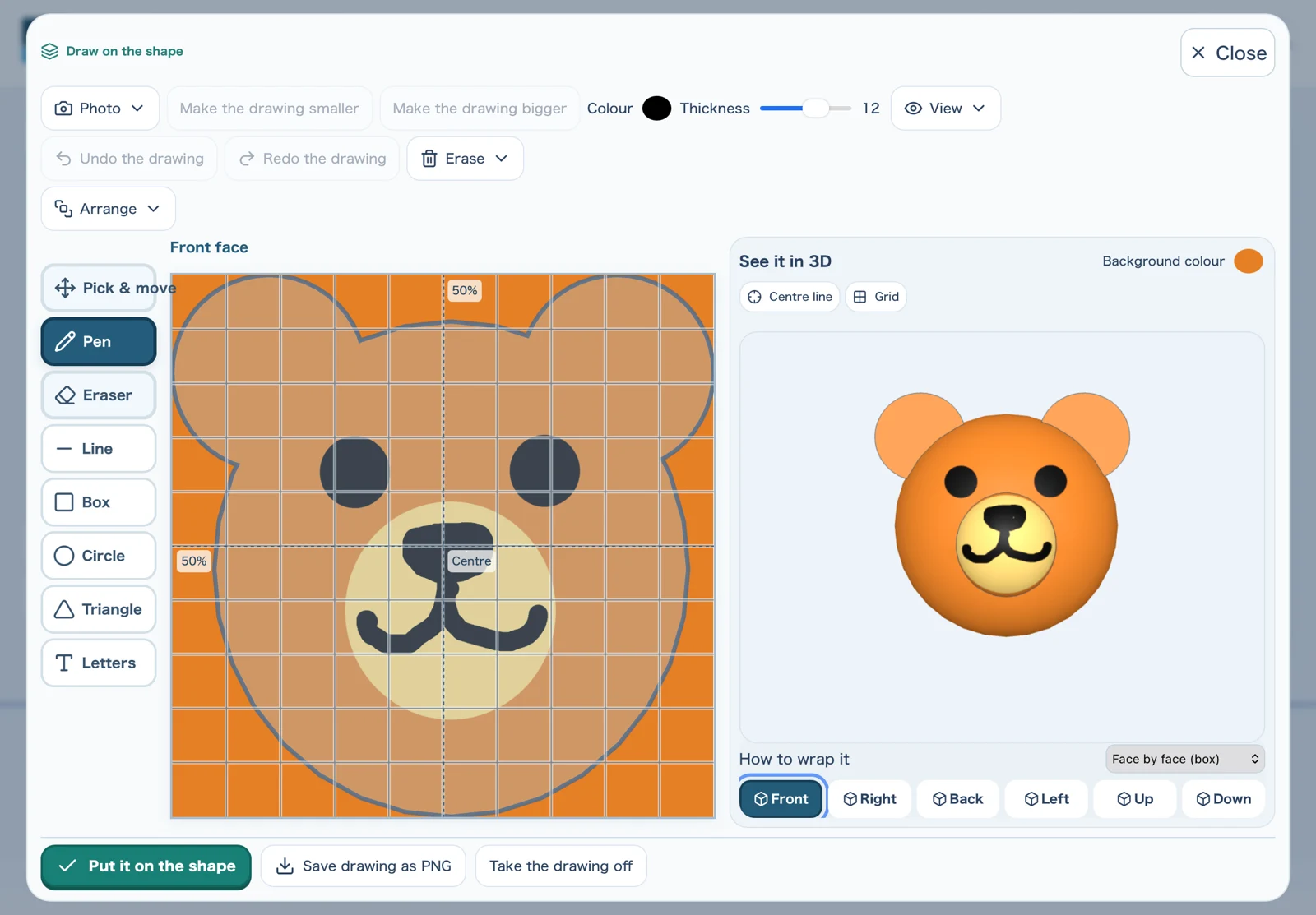
Draw directly on your model or apply images. Refine every detail of your design.
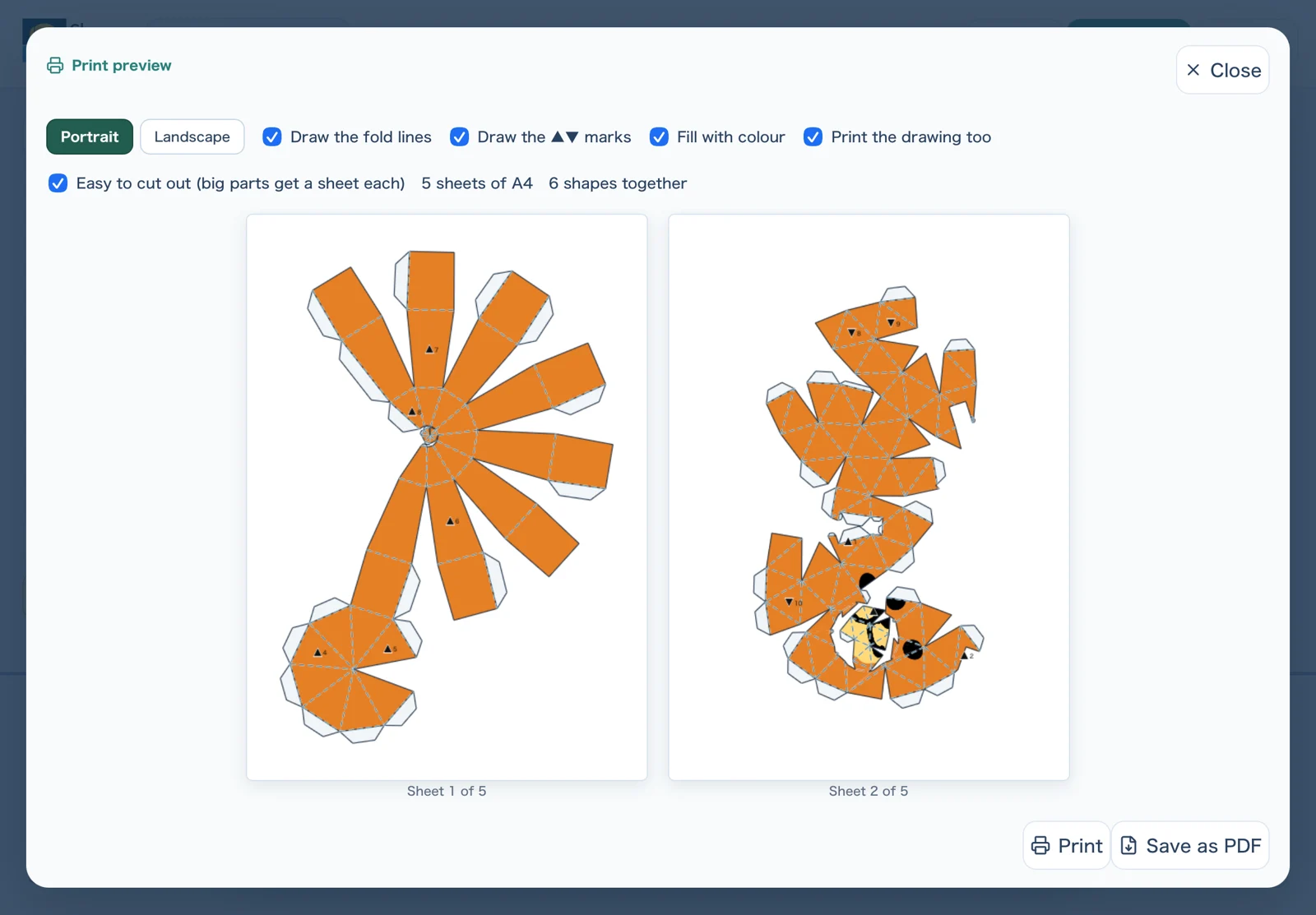
Print your design as a papercraft model or on a 3D printer, and hold your on-screen creation in your hands.
LET’S MAKE A BEAR
Watch a bear model come together in the real app, from basic operations to finishing touches.
A silent, 30-second highlight reel. The chapter buttons jump to the five-minute demo.
DESIGNED FOR DISCOVERY
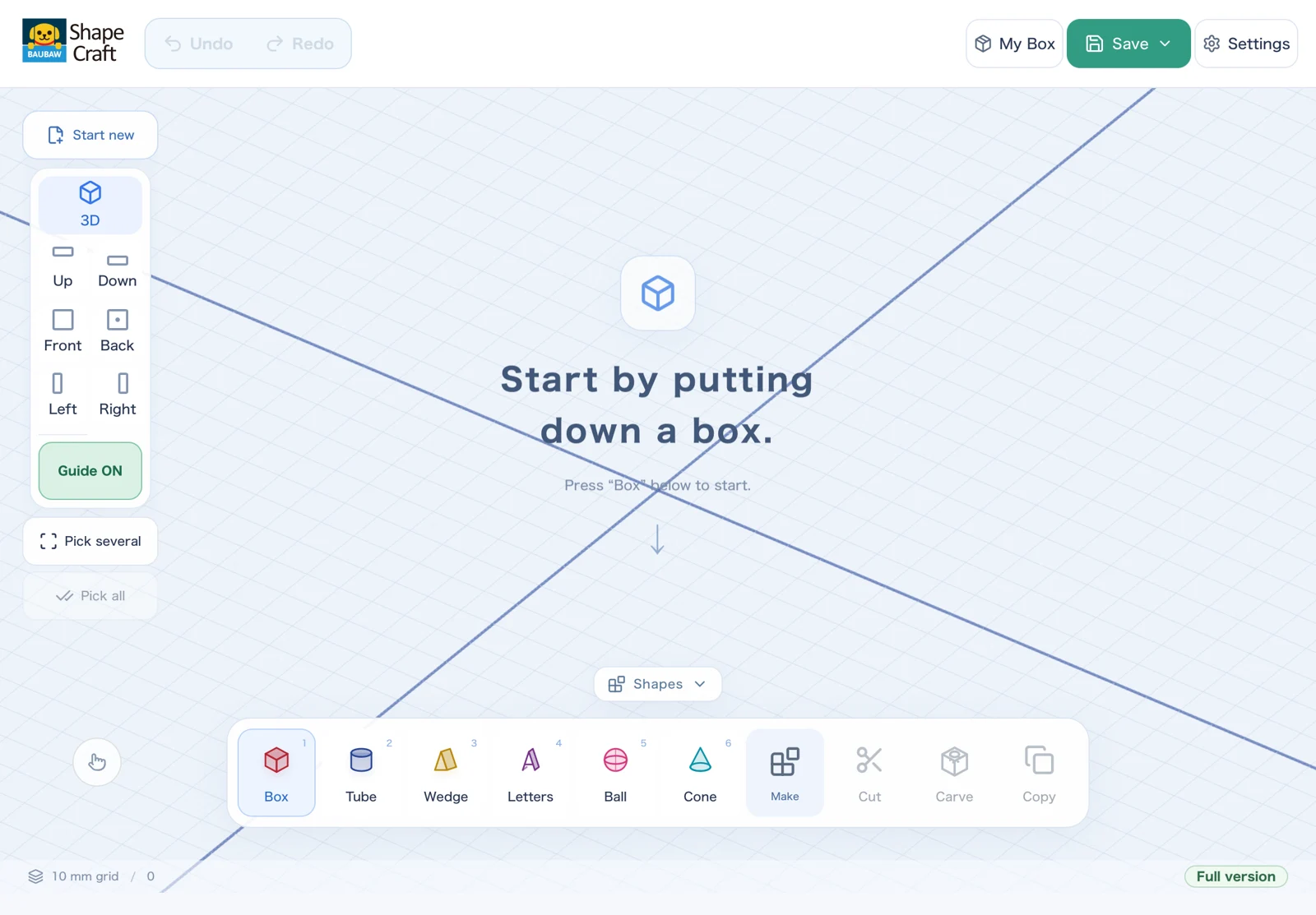
INTUITIVE BY DESIGN
Rotate with one finger. Move the workspace with two. Intuitive gestures and a spacious iPad interface let you focus on the design itself.
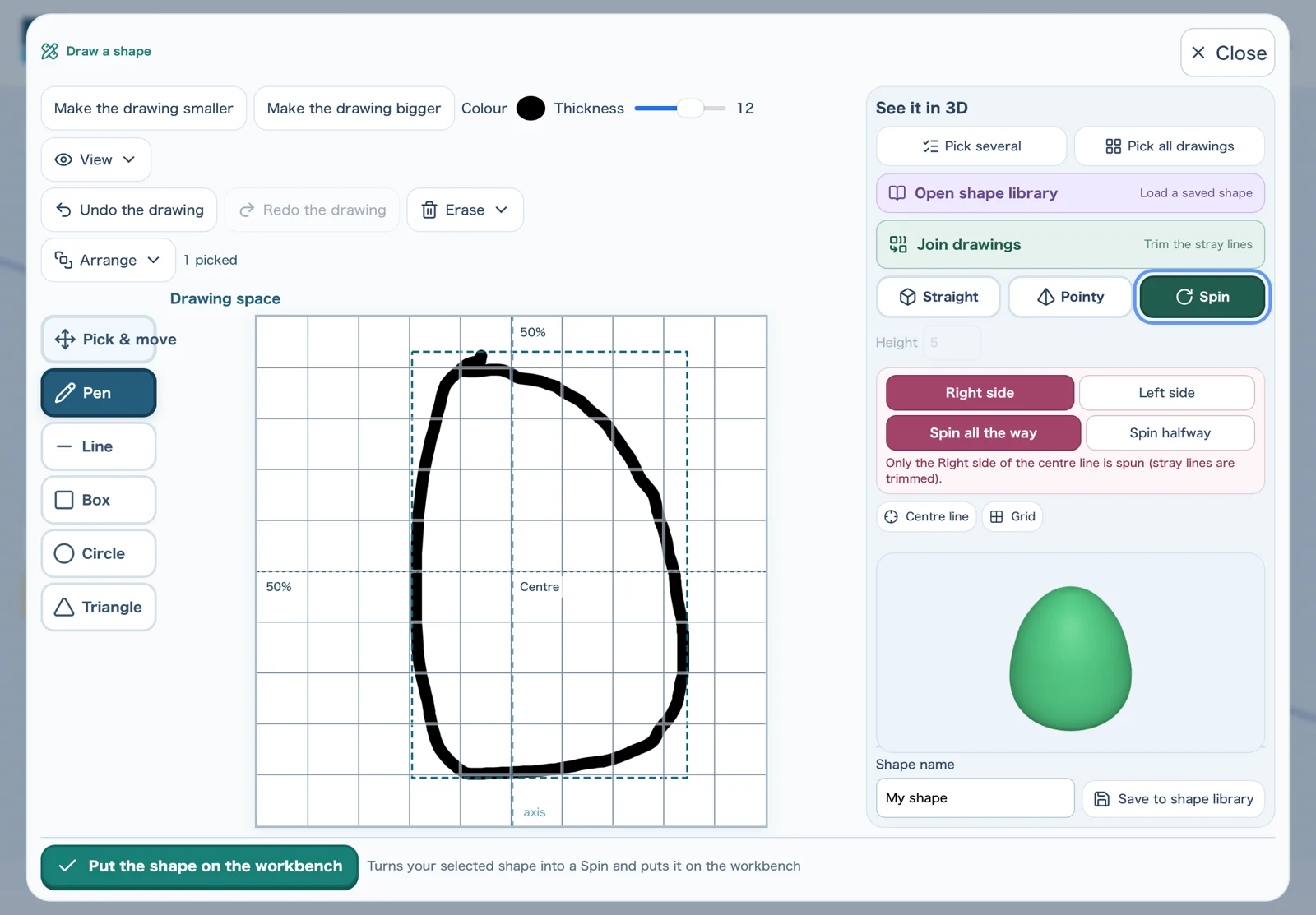
CREATE YOUR OWN SHAPES
Extrude outlines into solids, or rotate them into solids of revolution. The maths you learn becomes a real design tool. Add drawings and images for full creative control.
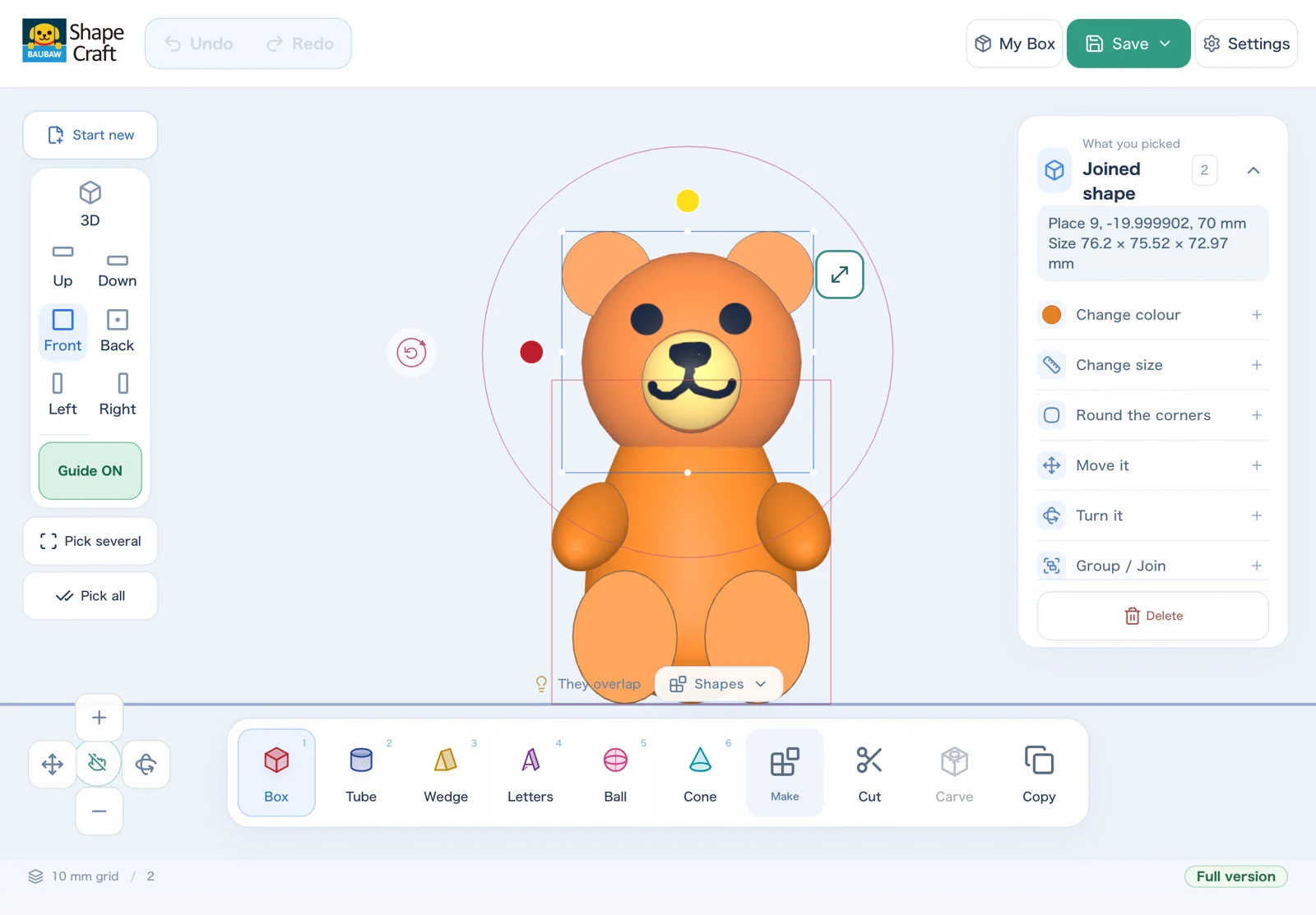
SWITCH YOUR VIEWPOINT
Positions and shapes that are hard to judge in 3D become clear from the top, front or side. Moving between 3D and three-view drawings builds strong spatial reasoning.
With the guide feature, you can line parts up exactly.
BEYOND THE SCREEN
On paper, as a solid object, or in a digital space.
Choose the output that suits your design.
Export in file formats that work with a wide range of output devices*.
*Compatible equipment or software is required for each output workflow. External export requires the full version.
Nets print as papercraft with glue tabs included.
STEAM stands for Science, Technology, Engineering, Art and Mathematics — learning that crosses subject boundaries instead of staying inside one, often used in inquiry-based and project-based learning.
A LITTLE PLAY. A LOT OF LEARNING.
Shapes, solids, similarity, scaling, cross-sections, nets and solids of revolution. Apply what you learn in class to your own designs. A STEAM making experience that connects maths with art, design and technology.
A NOTE FROM THE MAKERS
We wanted to build more than a simpler CAD app. We wanted a tool children could reach for the moment they thought, “I wish I could make that” — a tool that lets them start making with their own hands.
CAD and modelling tools are full of the maths children learn at school. Turn what you’ve learned into shapes with Shape Craft, then turn what you make into something real. Through that back-and-forth, we hope learning becomes a strength of their own.
BAUBAW Shape Craft was born from our wish to cheer on every child’s “I made it!”
The BAUBAW Shape Craft team / transistors
The app does not collect or automatically transmit data.
Making doesn’t need an internet connection.
Limit features to suit each user’s age and goals.
START SMALL. DREAM BIG.
For that first “I made it!”
For all the ideas that come next.
Planned prices: US$9.99 in the US / ¥1,500 in Japan. No monthly or annual subscription. Check the App Store at launch for local prices and device requirements. Purchases, purchase restoration and updates require an internet connection.
QUESTIONS & ANSWERS
No prior CAD experience is expected. Start by placing, moving and combining a few shapes. Once you’re comfortable, take on more advanced design with three-view drawings and solids of revolution.
Making is free — every shape, joining, carving, cutting, drawing, the three views, and seeing the paper model on screen.
| Keeping creations in My Box | Free: 3 · Full: as many as you like |
|---|---|
| Printing paper models | Free: 10 times · Full: unlimited |
| Export (3D printer, laser cutter, 3D software) | Full version only |
The full version is one payment, not a subscription.
You can enjoy making in 3D with just an iPad. To make papercraft, you need a way to print a PDF. A 3D printer or laser cutter is optional.
The iPad app supports English and Japanese. You can also switch this website between the two languages using the links at the top.
The app does not collect data or automatically send it anywhere. Creations are saved on the device. Parents can limit which features are available. See our Privacy Policy for details.
This happens after reinstalling the app or on a new iPad. Open Settings inside the app and tap Restore purchase. Sign in with the same Apple Account that bought it — that is what the receipt is tied to.
One purchase covers the family: with Family Sharing turned on, family members can restore it on their own iPads.
No. Everything works offline — building, unfolding, and making the PDF. A connection is needed only to buy or restore the full version, and to receive app updates from the App Store.
We cannot unlock it for you. The passcode lives only on your child's device — the app runs offline and we hold no information about your device at all. We deliberately did not build a “contact us to unlock” door, because a child could use that same door. There are two ways to clear it yourself, and both always work.
1. Wait 24 hours — your child's models are kept.
Only the lock is removed — models and settings stay. If you remember the passcode while waiting, entering it cancels the whole thing.
2. Need it right now — back up, then reinstall.
A purchased full version returns with Restore purchase.
Afterwards, please use Settings → Parent lock → Make a new recovery code and keep it on paper somewhere your child will not find it.
On the device only. Nothing is uploaded. Use Save to a file to keep a creation outside the app (iCloud Drive, Files, email) — that same file can be opened on another iPad.
Deleting the app deletes everything inside it, so export anything precious first.
Purchases are handled by Apple, so refunds are requested from Apple at reportaproblem.apple.com. We cannot issue them ourselves — but do tell us what went wrong, because it is usually something we can fix.
Yes. Through Apple School Manager or Apple Business Manager, a school or institution can deploy the app (which is free) to many iPads at once. If you would like the full version set up for many devices at your school, please get in touch via our support page.
Every creation starts with “What if?”

For iPad · English / 日本語 · Free with in-app purchase